How to Set Up the VIP Tiers Announcement Email
When a customer reaches a new VIP tier, Loyup can send them an announcement email to celebrate the upgrade and show them their new benefits. A well-written announcement makes customers feel valued and gives them a reason to come back and shop.
Open the email editor
- In your Shopify admin, go to Apps > Loyup > Customization.
- Under Store credit emails, find VIP tiers announcement email and click Set up.
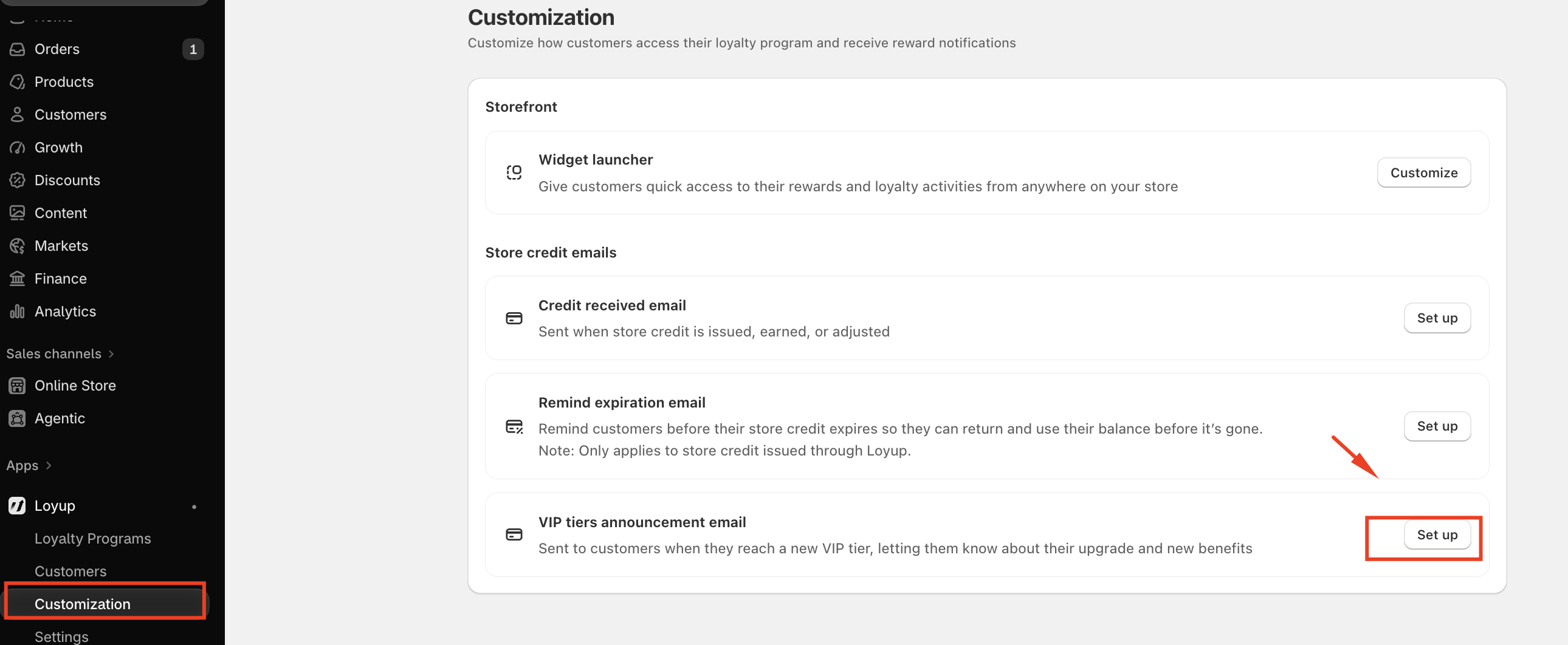
The editor opens with the settings on the left and a live preview of the email on the right, so you can see each change as you make it.
Email header
The header controls what customers see in their inbox before they open the email.
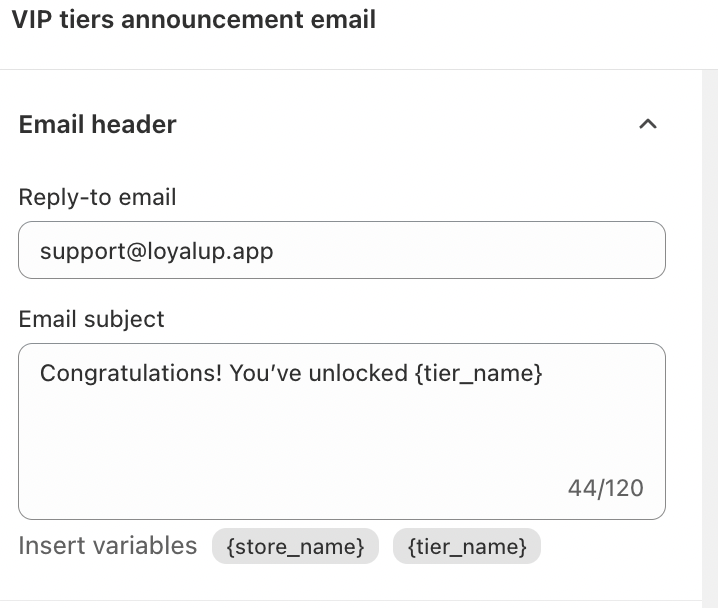
- Reply-to email: where customer replies go. Change it to your own support address so customers can reach you directly.
- Email subject: the subject line, up to 120 characters. The default is
Congratulations! You've unlocked {tier_name}.
You can personalize the subject with two variables:
{store_name}: your store's name.{tier_name}: the name of the tier the customer just reached, such as Gold.
Click a variable to insert it, and Loyup fills in the real value for each customer when the email is sent.
Main content
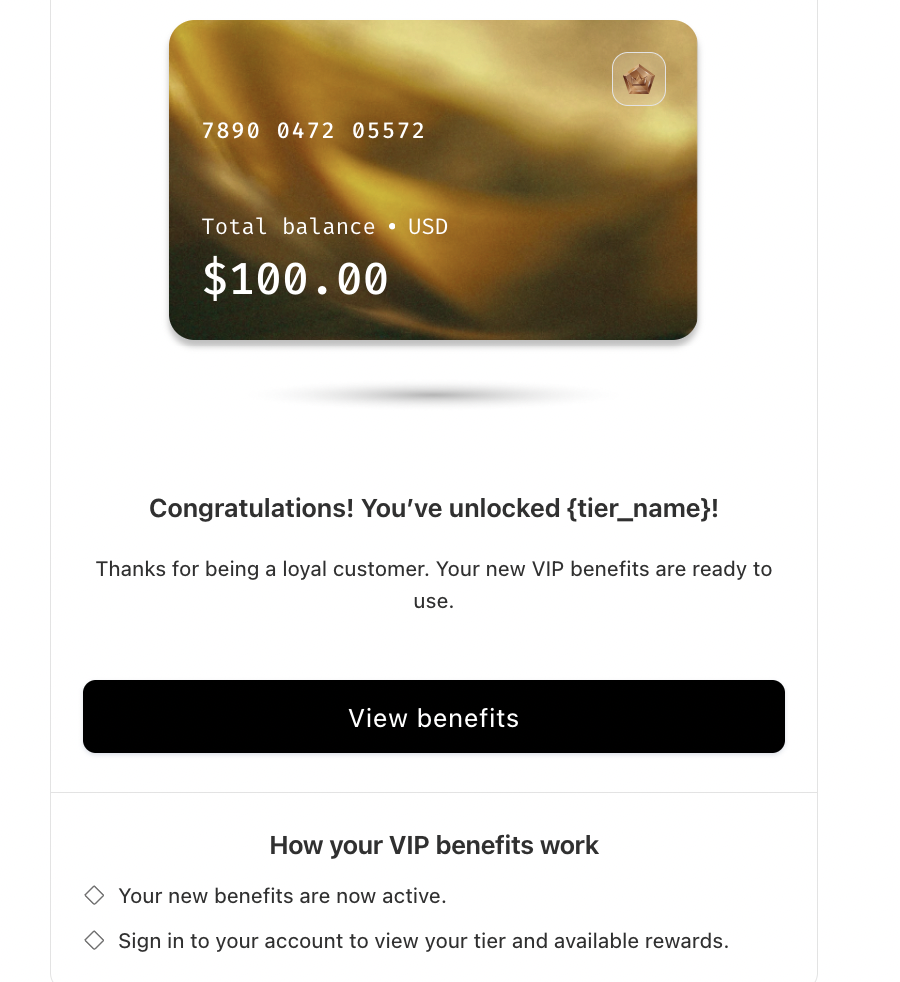
The main content is the body of the email. The preview shows it below the customer's reward card with their total balance.
| Field | What it does | Default |
|---|---|---|
| Heading | The headline of the email, up to 500 characters. Supports {tier_name} and {store_name}. | Congratulations! You've unlocked {tier_name}! |
| Content | A short message under the heading, up to 500 characters. | Thanks for being a loyal customer. Your new VIP benefits are ready to use. |
| CTA button content | The text on the main button. | View benefits |
| Button redirect | The link the button opens, such as your store's homepage or rewards page. | yourstore.com |
| Instruction title | A heading for the how-it-works section. | How your VIP benefits work |
| Instruction | Tells customers what to do next. | Your new benefits are now active. Sign in to your account to view your tier and available rewards. |
Tip: set Button redirect to a page where customers can see their benefits, so the button leads somewhere useful.
Color settings
Match the email's button to your brand by setting a hex code and opacity for each color:
- CTA background color: the button's fill color. The default is black (#000000).
- CTA text color: the button's text color. The default is white (#FFFFFF).
Choose colors with strong contrast so the button text stays easy to read.
Preview and save
Check the preview on the right before you save. It shows the subject line and reply-to address at the top, followed by the full email as customers will see it. When everything looks right, save your changes. From then on, Loyup sends the announcement automatically each time a customer reaches a new VIP tier.
If you have any concerns or questions, please do not hesitate to contact us at [email protected]