How to Set Up the Facebook Page Like Reward Program
The Like your Facebook page program allows you to reward customers with store credit when they like your Facebook page. This is a simple way to encourage customers to connect with your brand on Facebook while giving them an additional incentive to engage with your business.
Before You Start
To issue rewards through the Facebook Like program, make sure Store Credit is enabled in your customer account settings.
Set Up a Facebook Page Like Reward
To configure the Facebook Like reward:
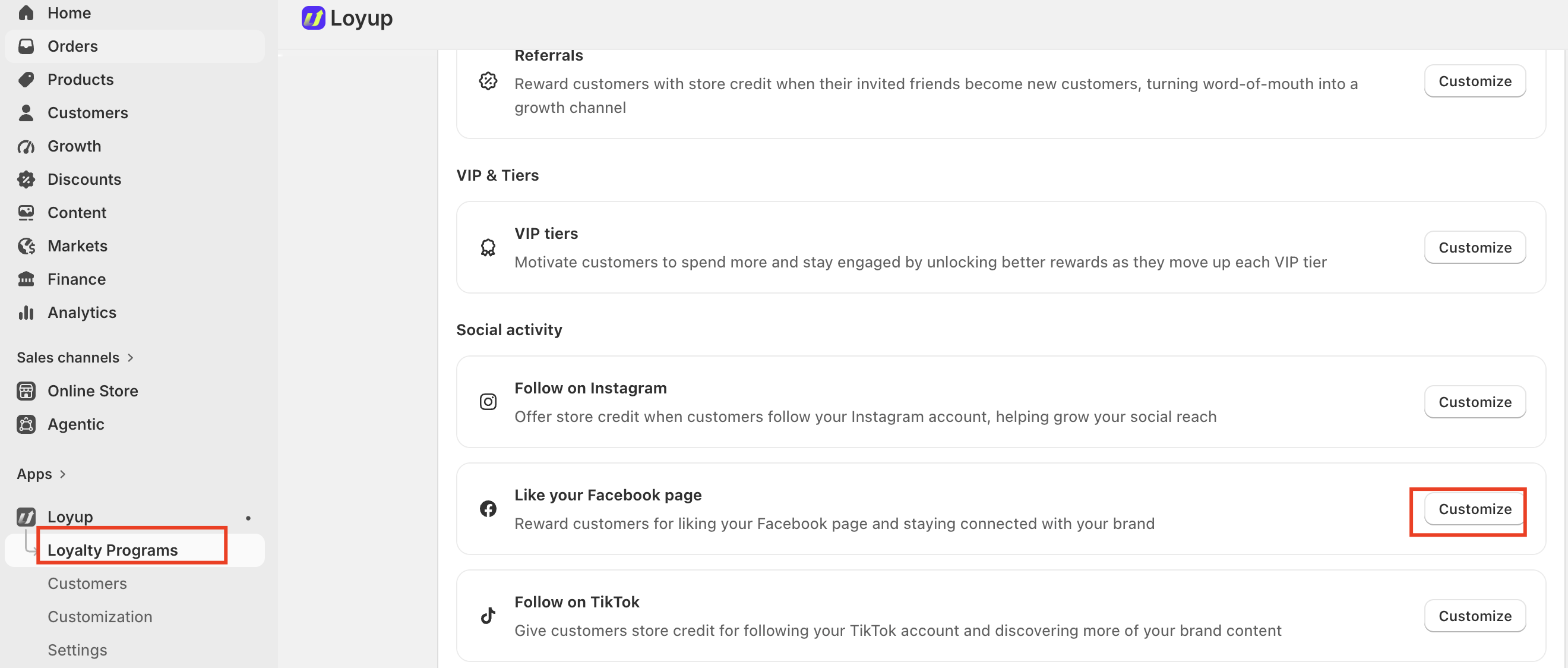
- From your Shopify admin, open Loyup.
- Select Loyalty Programs.
- Under Social activity, find Like your Facebook page.
- Click Customize.
You’ll see the Facebook Like settings page, where you can configure the reward and connect your Facebook page.
1. Set the Reward Value
In the Reward value field, enter the amount of store credit you want to give customers when they like your Facebook page.
For example, if you enter $1, customers will receive $1 USD in store credit when they complete the Facebook Like activity.
Choose a reward amount that fits your loyalty program and provides a clear incentive for customers to connect with your brand on Facebook.
2. Set Store Credit Expiration
You can choose how long the store credit earned from the Facebook Like activity remains available to customers.
- Never expires — The store credit remains available without an expiration date.
- Expires after a set period — The store credit expires after the period you specify.
Choose the option that best fits your store's reward policy.
3. Add Your Facebook Page URL
In the Facebook page URL field, enter the URL of your Facebook page.
For example:
This link is used to redirect customers to your Facebook page so they can connect with your brand.
Make sure you enter the correct Facebook page URL so customers are directed to the intended page.
4. Add a Transaction Note
You can optionally add a Transaction note to describe the reward.
For example:
Facebook reward
The transaction note helps identify why the store credit was issued and can make reward transactions easier to understand when reviewing customer activity.
Activate the Facebook Like Program
After configuring the reward settings, make sure the program is Activated so customers can earn the reward.
To activate the program:
-
Open Loyup.
-
Select Customization.
-
Under Storefront, find Widget launcher.
-
Click Customize.
-
Activate the widget to display it on your storefront.
When the program is activated, customers can complete the Facebook Like activity and receive the configured store credit reward.
Note: Store Credit must be enabled in your customer account settings before rewards can be issued.
Important Notes
- Store Credit must be enabled in your customer account settings before rewards can be issued.
- Customers can earn the Facebook Like reward once per customer.
- You can choose whether the store credit never expires or expires after a set period.
- Make sure the Facebook page URL points to the correct Facebook page.
- You can add an optional Transaction note to help identify the reward.
- The program must be set to Activated for customers to participate and receive the configured reward.
If you have any questions or concerns, feel free to contact us at [email protected].