How to Set Up the Subscribe to Newsletters Reward Program
The Subscribe to Newsletters program allows you to reward customers with store credit when they subscribe to your store’s newsletter. This is a simple way to encourage visitors to subscribe to your marketing communications while giving them an incentive to engage with your store.
Before You Start
To issue rewards through the Subscribe to Newsletters program, make sure Store Credit is enabled in your customer account settings.
Set Up a Subscribe to Newsletters Reward
To configure the Subscribe to Newsletters reward:
- From your Shopify admin, go to Apps.
- Select Loyalty Programs.
- Open the Subscribe to newsletters program.
You’ll see the Subscribe to Newsletters settings page, where you can configure the reward details.
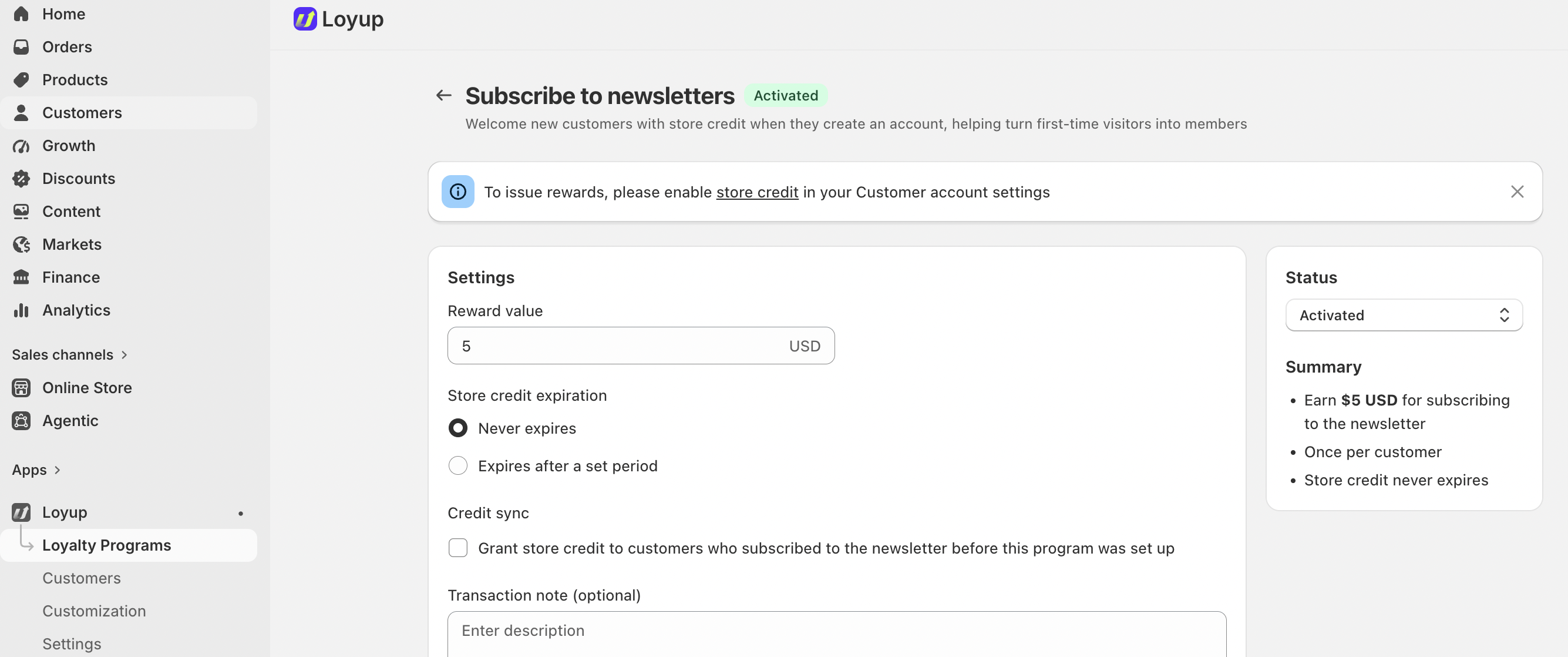
1. Set the Reward Value
In the Reward value field, enter the amount of store credit you want to give customers when they subscribe to your newsletter.
For example, if you enter $5, customers will receive $5 USD in store credit for subscribing to the newsletter.
2. Set Store Credit Expiration
You can choose how long the sign-up reward remains available to customers.
- Never expires — The store credit remains available without an expiration date.
- Expires after a set period — The store credit expires after the period you specify.
Choose the option that best fits your loyalty program.
3. Set the Credit Sync Option
The Credit sync option allows you to decide whether customers who subscribed to your newsletter before the program was created should also receive the reward.
If you also want to reward customers who already had an account before the program was created, enable:
Issue this signup reward to customers who already created an account before this program was set up
When enabled, eligible customers who subscribed before the program was configured can receive the newsletter subscription reward.
4. Add a Transaction Note
You can optionally add a Transaction note to describe the reward.
For example:
Sign-up reward
This note can help you identify why the store credit was issued.
Activate the Loyalty Widget
After setting up the Sign Up reward, you need to activate the Widget launcher so customers can access and register for your loyalty program from your storefront.
To activate the widget:
- From your Shopify admin, go to Apps.
- Open Loyup.
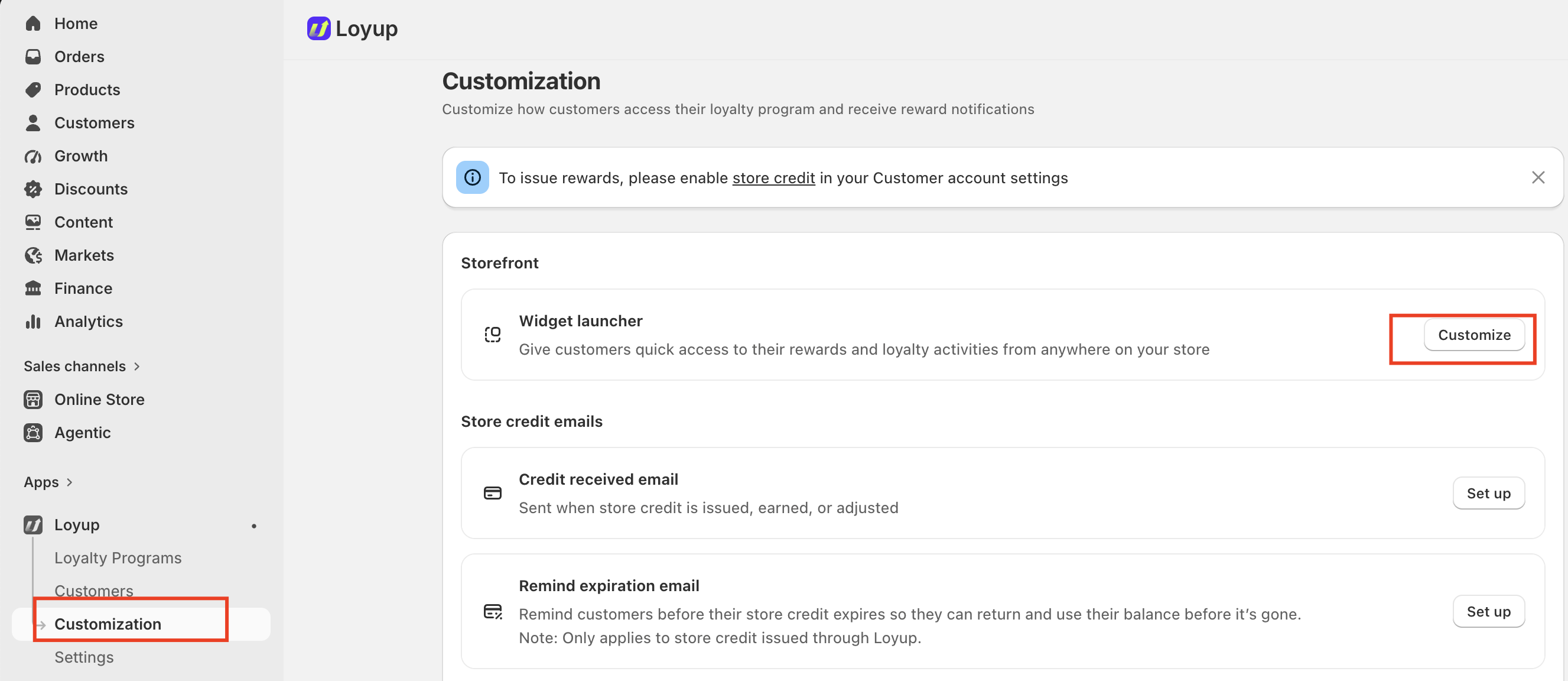
- Select Customization.
- Under Storefront, find Widget launcher.
- Click Customize.
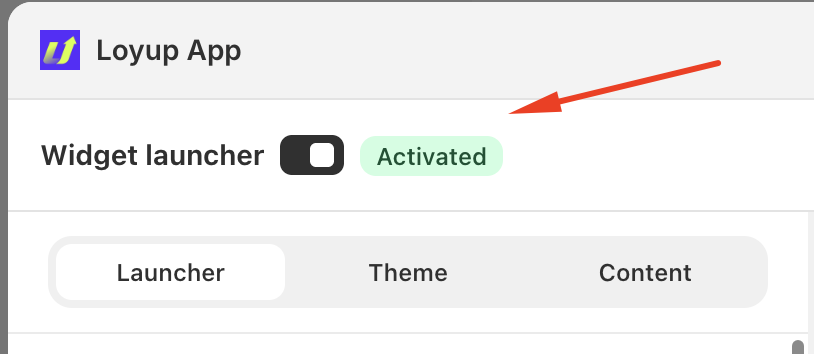
- Activate the widget to display it on your storefront.
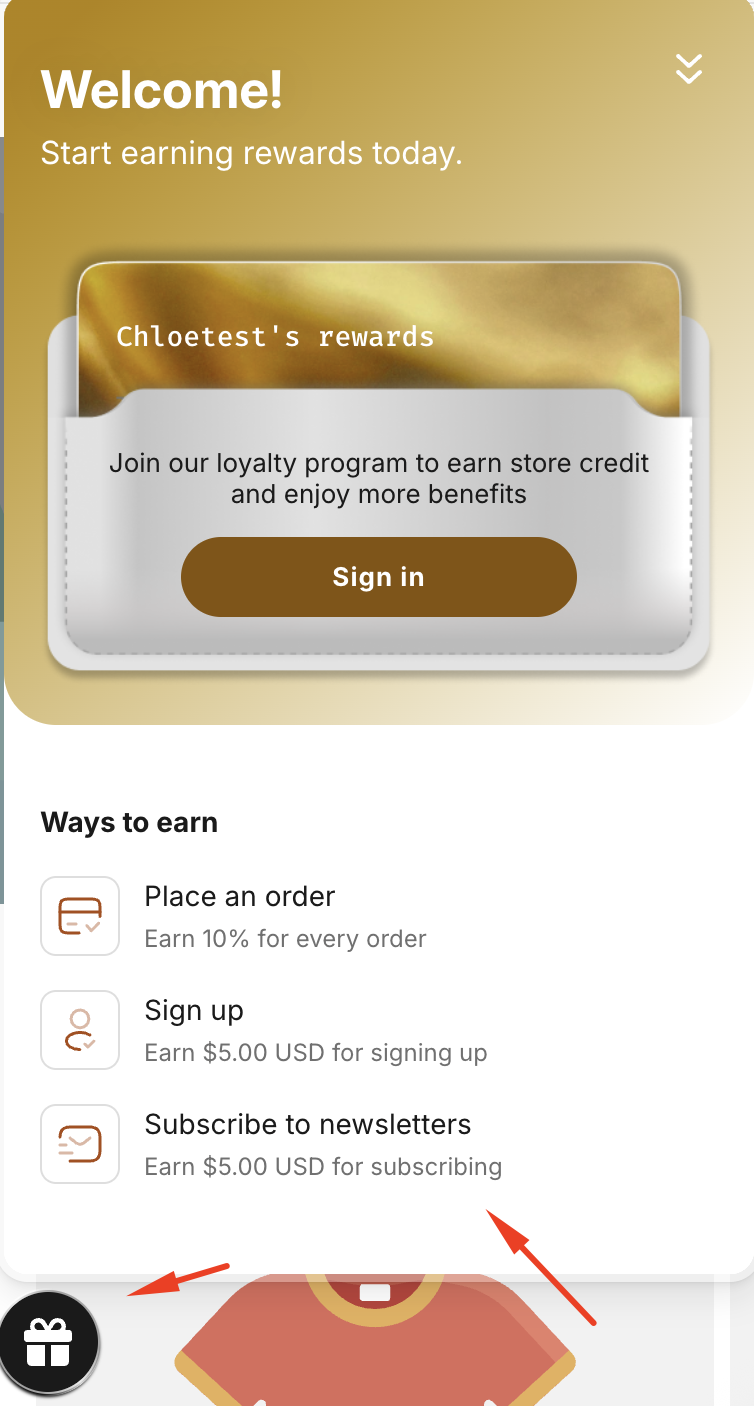
Once activated, the widget will appear on your store and give customers quick access to your loyalty program. Customers can use the widget to register for the loyalty program, view their rewards, and access available loyalty activities.
Note: Make sure the widget is activated if you want customers to easily discover and register for your loyalty program from your storefront.
Important Notes
- Store Credit must be enabled in your customer account settings before rewards can be issued.
- The Subscribe to Newsletters reward is available to customers who subscribe to your newsletter.
- You can choose whether the store credit expires or never expires.
- You can optionally grant the reward to customers who subscribed to the newsletter before the program was created.
- The program must be set to Activated for the reward to be active.
- You can add a transaction note to make it easier to identify the purpose of the issued store credit.
If you have any questions or concerns, feel free to contact us at [email protected].