How to Set Up the Referral Reward Program
The Referrals program allows you to reward existing customers when their invited friends become new customers. With Loyup, you can give the referring customer store credit based on the referred order value and optionally offer a reward to the new customer as well.
This is a simple way to encourage word-of-mouth referrals and turn existing customers into an additional growth channel for your store.
Before You Start
To issue rewards through the Referrals program, make sure Store Credit is enabled in your customer account settings.
Set Up a Referral Reward
To configure the Referrals program:
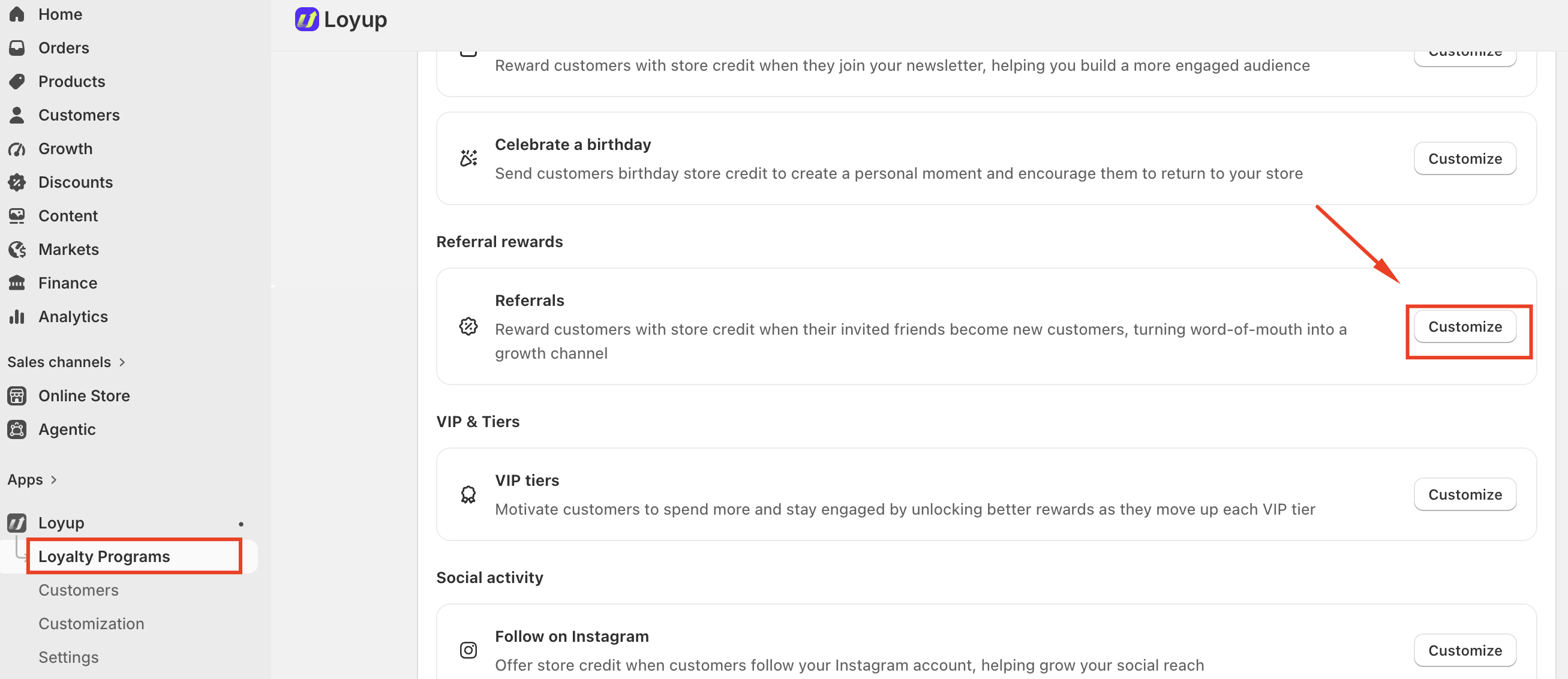
- From your Shopify admin, open Loyup.
- Select Loyalty Programs.
- Under Referral rewards, find Referrals.
- Click Customize.
You’ll see the Referrals settings page, where you can configure rewards for both referrers and referees.
Configure the Referral Rewards
1. Set the Referrer Reward
The Referrer reward determines how much store credit the existing customer receives when their referred friend successfully places an eligible order.
You can set the reward as a percentage of the referred order value.
For example, if you set the referrer reward to 10% of the referred order value and the referred customer places a $100 eligible order, the referring customer will receive $10 USD in store credit.
Use the reward setting to determine how much store credit you want to give customers for successful referrals.

2. Set the Referee Reward
The Referee reward allows you to give store credit to the new customer who was referred.
You can enable this reward and specify the amount of store credit they should receive.
For example, you could offer:
$5 USD store credit
This gives new customers an additional incentive to complete their first purchase using a referral.
The referee reward is optional. If you do not want to offer a reward to referred customers, you can leave the Referee reward turned off.

3. Set the Minimum Order Requirement
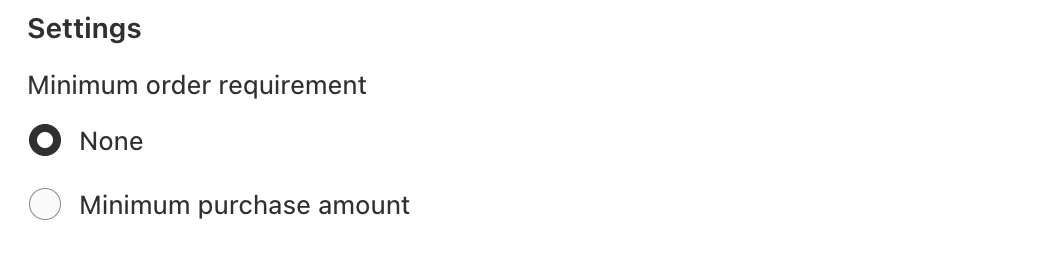
Under Settings, you can determine whether a minimum purchase amount is required before a referral reward becomes eligible.
You can choose between:
- None — The referral reward can apply without a minimum purchase amount.
- Minimum purchase amount — Set a minimum order value that the referred customer must reach before the referral reward is issued.
For example, if you set a minimum purchase amount of $50, the referred order must meet that amount before the referral reward can be issued.
Choose the option that best fits your referral strategy.
4. Choose Which Orders Are Eligible
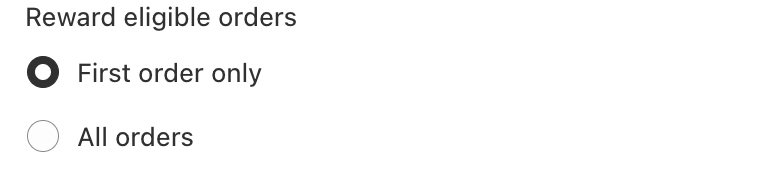
Under Reward eligible orders, you can choose which orders qualify for the referral reward.
You can select:
- First order only — The referral reward applies only to the referred customer's first eligible order.
- All orders — Eligible orders can continue to generate referral rewards.
Selecting First order only is useful when you want the referral program to reward the initial conversion of a new customer.
5. Set Store Credit Expiration
You can choose how long referral rewards remain available to customers.
- Never expires — The store credit remains available without an expiration date.
- Expires after a set period — The store credit expires after the period you specify.
Choose the option that best fits your loyalty program.
6. Add a Transaction Note
You can optionally add a Transaction note to describe the referral reward.
For example:
Referral reward
A transaction note can make it easier to identify why store credit was issued when reviewing customer transactions.
7. Set the Referral Link Destination
Under Referral link destination, you can choose where customers are sent when they use a referral link.
Leave the field blank to direct referred customers to your store's homepage.
Alternatively, enter the handle of an existing page to send referred customers directly to that page.
For example, if you enter a page handle such as pages/special-offer, referred customers can be directed to that specific page instead of the homepage.
Use this setting if you want referred customers to land on a dedicated page, such as a promotion, collection, or referral landing page.
8. Choose Available Sharing Channels
Under Available sharing channels, you can select which channels customers can use to share their referral links.
The available options are:
- Facebook — Allow customers to share their referral link on Facebook.
- X — Allow customers to share their referral link on X.
- Email — Allow customers to share their referral link by email.
Select the channels you want to make available to your customers. You can enable one or multiple sharing channels depending on how you want customers to invite their friends.

Activate the Referral Program
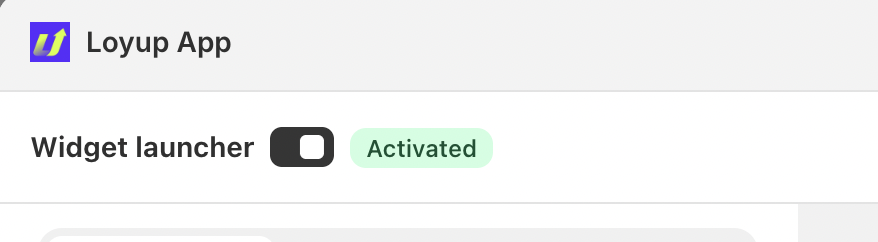
After configuring the referral reward settings, make sure the Status of the program is set to Activated.
When the program is activated, customers can participate in your referral program and eligible rewards can be issued according to the settings you configured.
Note: Store Credit must be enabled in your customer account settings before Loyup can issue referral rewards.
Important Notes
- Store Credit must be enabled in your customer account settings before referral rewards can be issued.
- The Referrer reward can be configured as a percentage of the referred order value.
- The Referee reward is optional and can be turned on or off.
- You can set a minimum purchase amount for eligible referral orders.
- You can choose whether rewards apply to the first order only or all orders.
- You can choose whether store credit never expires or expires after a set period.
- A Transaction note can be added to help identify referral reward transactions.
- You can leave the Referral link destination blank to send referred customers to the homepage, or enter an existing page handle to direct them to a specific page.
- You can enable Facebook, X, and Email as available referral sharing channels.
- Make sure the Referrals program is Activated when you want customers to participate and earn rewards.
If you have any questions or concerns, feel free to contact us at [email protected].